Emails
Step 1. Add the addresses you want to keep warm, label them, and choose which one each run subscribes.
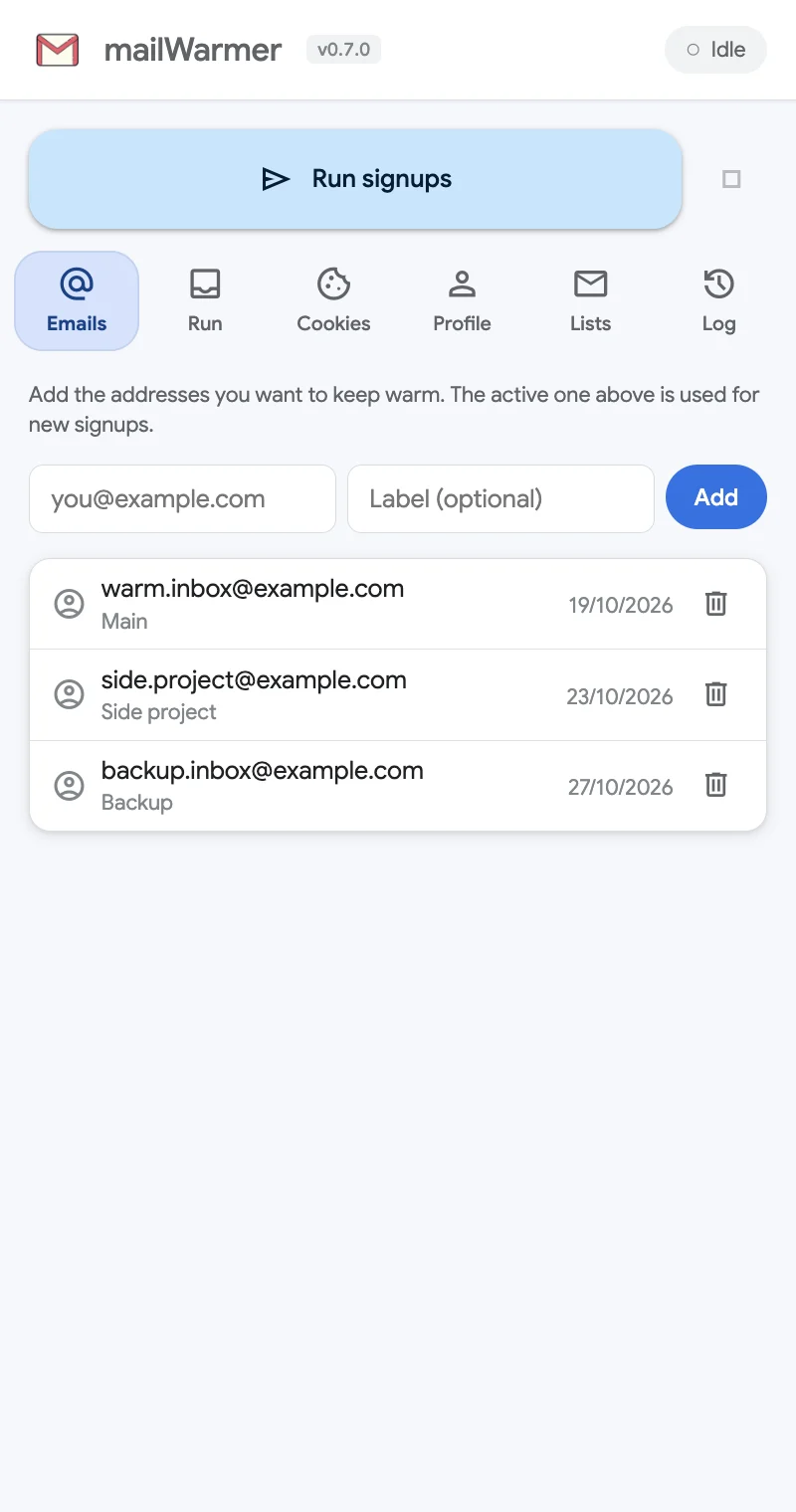
The Emails tab holds every inbox you want to keep active. It is step 1: a run always subscribes one of these addresses.
Add an address
- Type the email address in the first field.
- Optionally type a label in Label (optional) — Main, Side project, Backup… Labels only help you tell the inboxes apart.
- Click Add.
The address joins the list with the date you added it. Adding the same address twice is refused with Email already added.
Remove an address
Click the trash icon at the end of its row.
Which address a run uses
Runs don’t use every address at once. On the Run tab, the From selector picks the address for the next run. To warm several inboxes, run once per address: pick the first in From, run, then pick the next.
Results are kept per address and per newsletter, so each inbox has its own history. Un-subscribed only on the Run tab uses that history to tick just what the selected address still needs.
Good to know
- Use only addresses you own or are allowed to use.
- mailWarmer never signs in to, opens or reads these inboxes. It only types the address into public newsletter signup forms.
- The list lives in your browser’s local extension storage and is never sent anywhere.
Something missing or wrong? Open an issue.